Your SDK Integration
Here you will learn how to add the Group Link SDK to your SDK and start it from your SDK.
Step 1 - Build settings
In your SDK framework target, confirm that the following build settings are correct:
| Xcode name | Setting | Value |
|---|---|---|
| Build Libraries for Distribution | BUILD_LIBRARY_FOR_DISTRIBUTION | YES |
| Skip Install | SKIP_INSTALL | NO |
If your SDK is already distributed as an XCFramework, both settings will already be correct.
Where and how to change: your SDK project → framework TARGET → Build Settings → filters All + Combined → search the setting → if needed, change the value for all configurations (Debug and Release).
Note: The search accepts both the Xcode name (e.g.
Build Libraries for Distribution) and the setting name (e.g.BUILD_LIBRARY_FOR_DISTRIBUTION). By default, the list shows the Xcode names; to see the setting names: Editor → Show Setting Names.
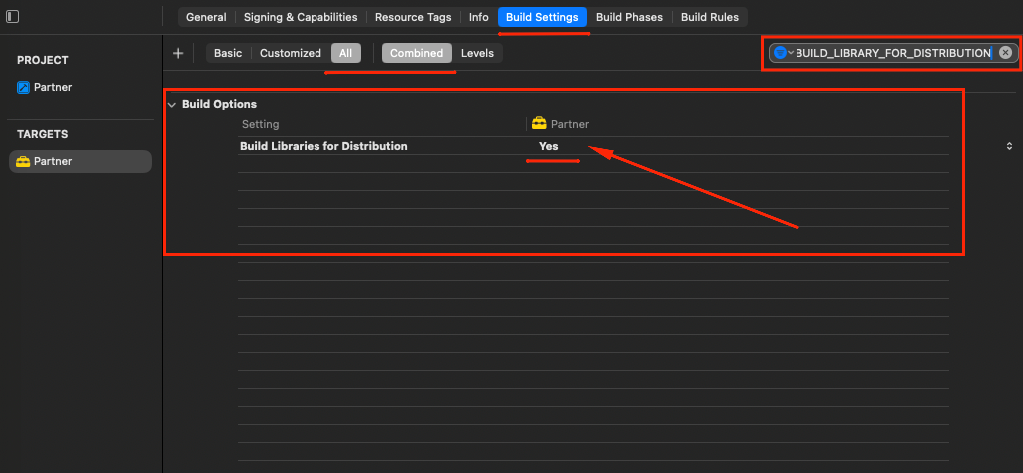
Build Libraries for Distribution set to Yes
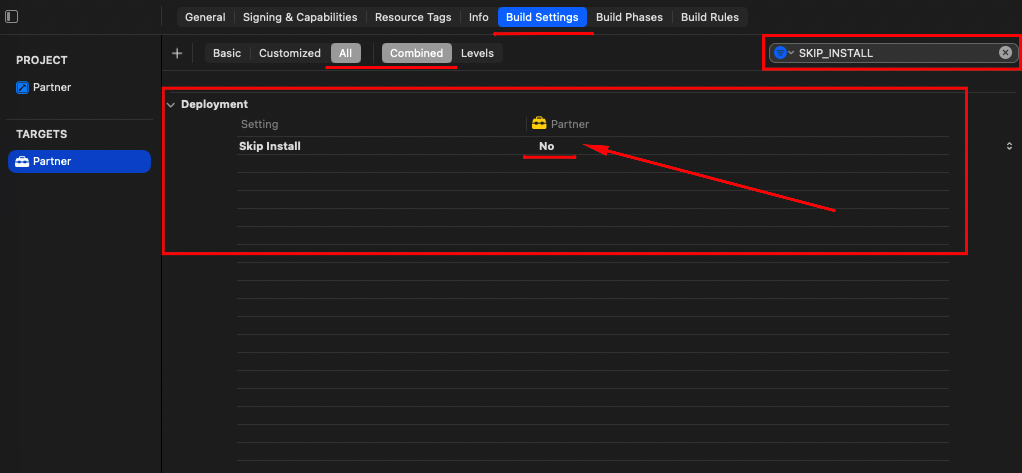
Skip Install set to No
If the value comes from somewhere else, change it there; otherwise, it overrides what was done in Xcode. To find where it comes from: Build Settings → Levels view, which shows in which column (target, project, .xcconfig) the value is defined.
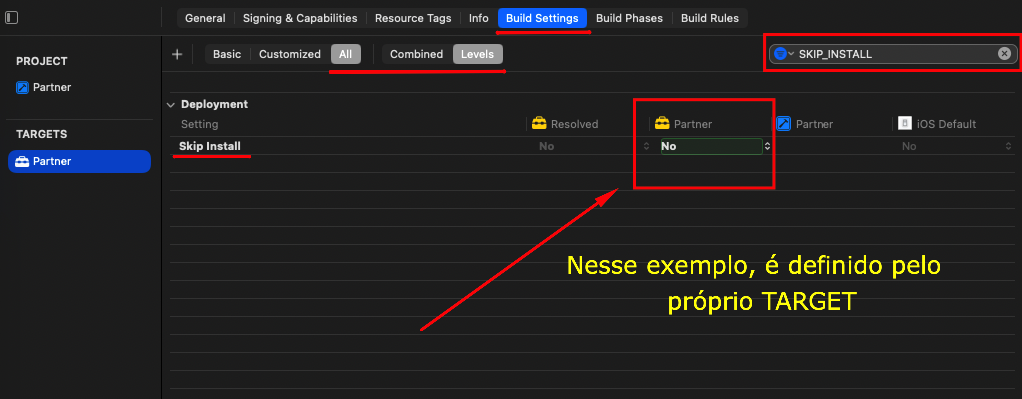
Build Settings in the Levels view
Step 1a - Alternative setup via .xcconfig
.xcconfig of the framework target:
BUILD_LIBRARY_FOR_DISTRIBUTION=YES
SKIP_INSTALL=NO
Step 1b - Alternative setup via XcodeGen
XcodeGen (project.yml):
targets:
  YourSDK:
    type: framework
    settings:
      base:
        BUILD_LIBRARY_FOR_DISTRIBUTION: YES
        SKIP_INSTALL: NO
Step 1c - Alternative setup via Tuist
Tuist (Project.swift):
.target(
    name: "YourSDK",
    destinations: .iOS,
    product: .framework,
    bundleId: "…",
    sources: ["Sources/**"],
    settings: .settings(base: [
        "BUILD_LIBRARY_FOR_DISTRIBUTION": "YES",
        "SKIP_INSTALL": "NO"
    ])
)
Step 1d - Alternative setup via command line (build script)
Build script (xcodebuild archive):
xcodebuild archive \
  -project YourSDK.xcodeproj \
  -scheme YourSDK \
  -configuration Release \
  -destination "generic/platform=iOS" \
  -archivePath build/ios.xcarchive \
  BUILD_LIBRARY_FOR_DISTRIBUTION=YES \
  SKIP_INSTALL=NO
Step 2 - Add the Group Link SDK package
Adding a new package to your project
- In Xcode, find the left panel and click your
PROJECT. - At the top of the opened window, click the
Package Dependenciestab. - The list of packages used in the project will be shown.
- Click the
+button at the bottom left of this list to add a new package.
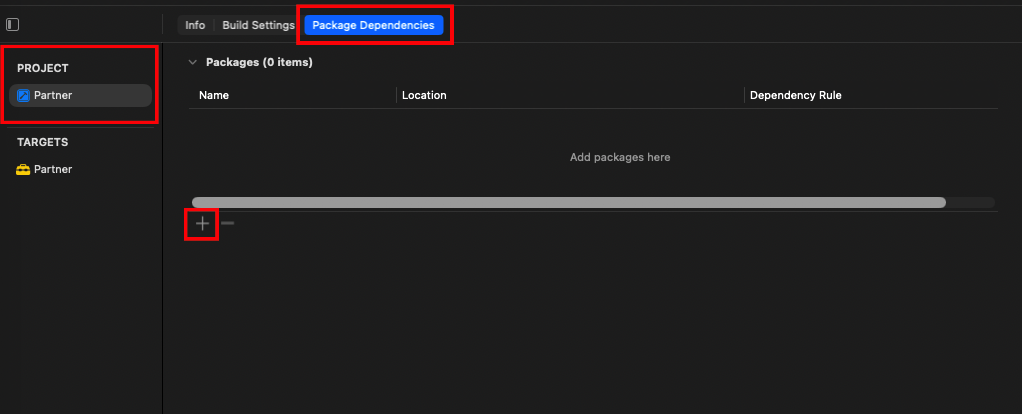
Adding a new package to the project
Searching the package by its GitHub URL
- In the search field, at the top right corner of the window, paste the repository URL:
https://github.com/Group-Link-One/iOSGrouplinkStatic
- In a few moments, the
iosgrouplinkstaticresult will show up in the list. - Click
iosgrouplinkstaticto select it. - Check that the
Dependency Ruleis set toUp to Next Major Versionand keep the version filled in by Xcode. - Click
Add Packageto addiosgrouplinkstaticto the project.
⚠️ Warning: Make sure the
Dependency Ruleis set correctly. In theDependency Rule, do not use theUp to Next Minor Version,Branch,Exact Version,Range of VersionsorCommitoptions. The correct setting isUp to Next Major Version. This setting ensures you will always use a compatible version of the SDK published by Group Link One.
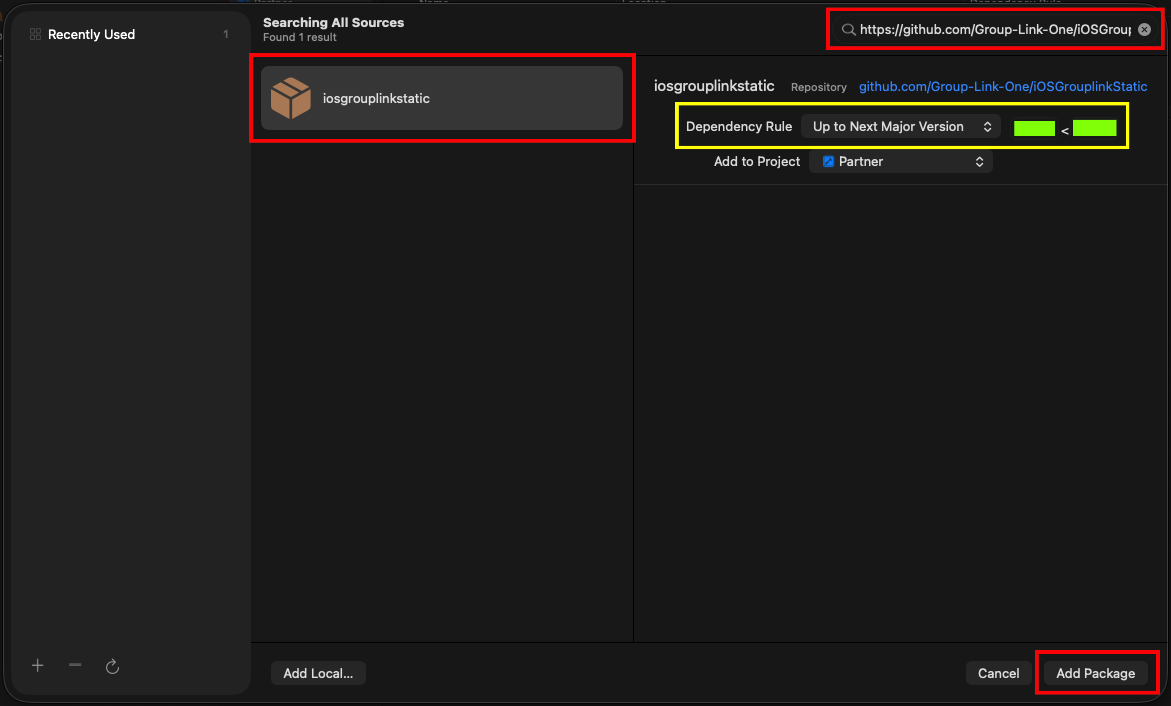
Searching the iOSGrouplinkStatic package by its GitHub URL
Choosing the package products
Xcode will resolve the package and open the Choose Package Products for iOSGrouplinkStatic window.
- Check that the
GroupLinkStaticpackage is in the list. - In the
Add to Targetcolumn, confirm it is associated with your SDK framework target. - Click
Add Packageto confirm adding the package.
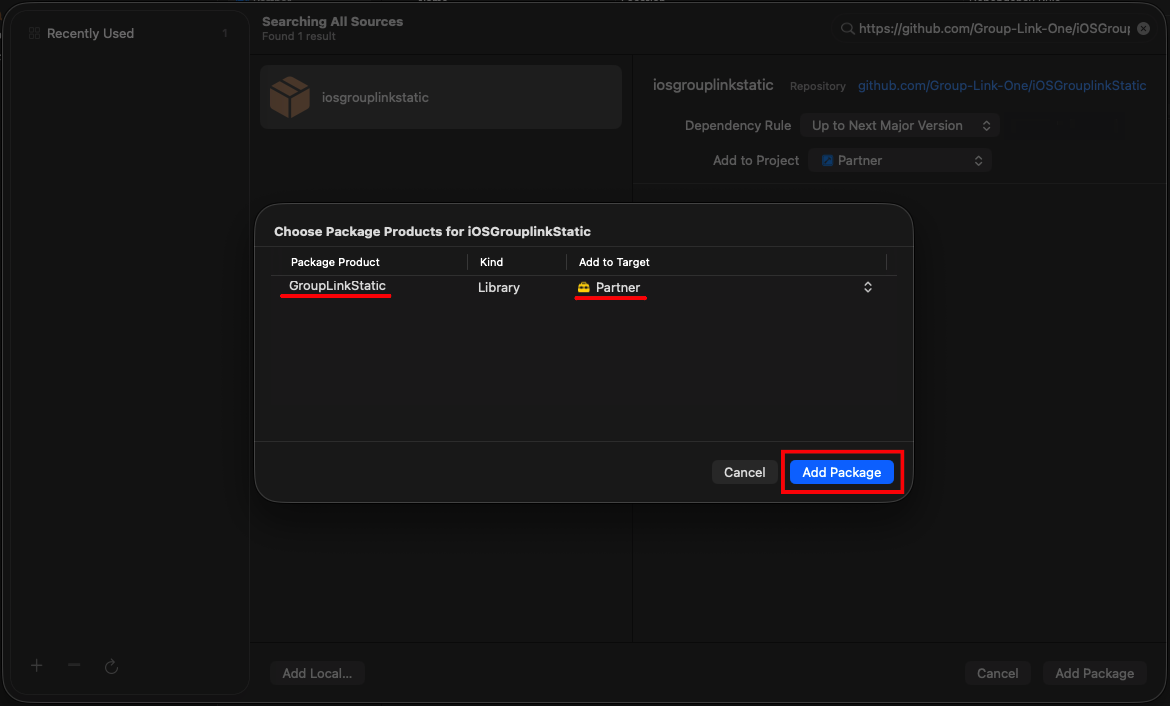
Choosing the iOSGrouplinkStatic package products
Checking the installation
When it finishes, you will be back on the Package Dependencies tab. There, confirm that everything is correct:
- The list must now show the
GroupLinkStaticPackagepackage. - The
GroupLinkStaticPackagepackage shows:- Location:
https://github.com/Group-Link-One/iOSGrouplinkStatic - Dependency Rule:
Up to Next Major Version - Value:
<CURRENT_PACKAGE_VERSION>
- Location:
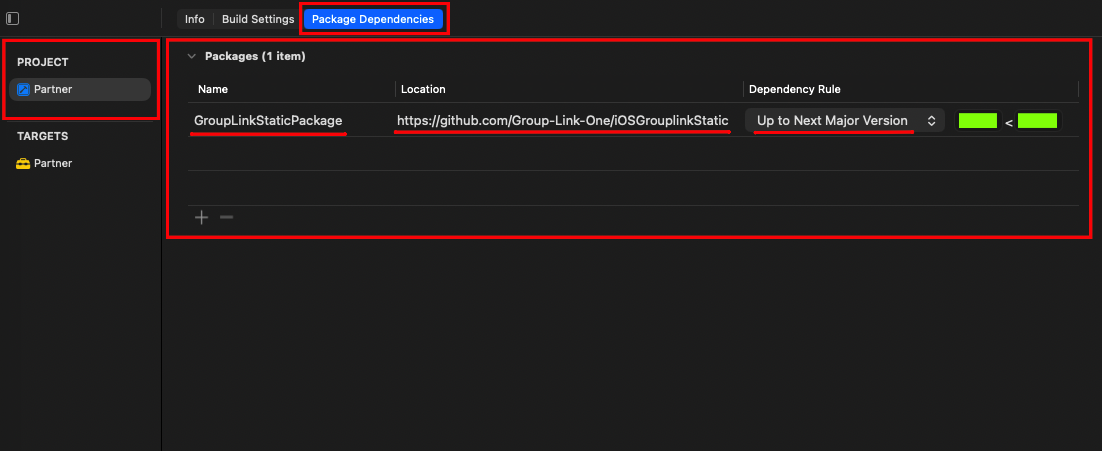
Checking the GroupLinkStaticPackage package installation
Checking the package in Link Binary With Libraries
Check that the GroupLinkStatic package was added correctly:
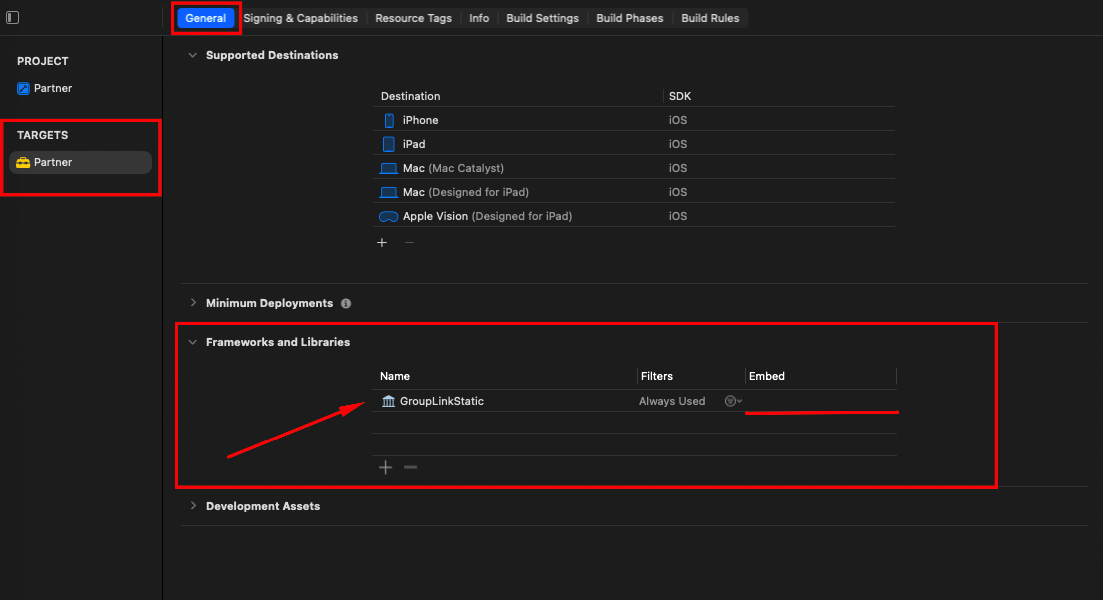
GroupLinkStatic in the framework TARGET → General → Frameworks and Libraries
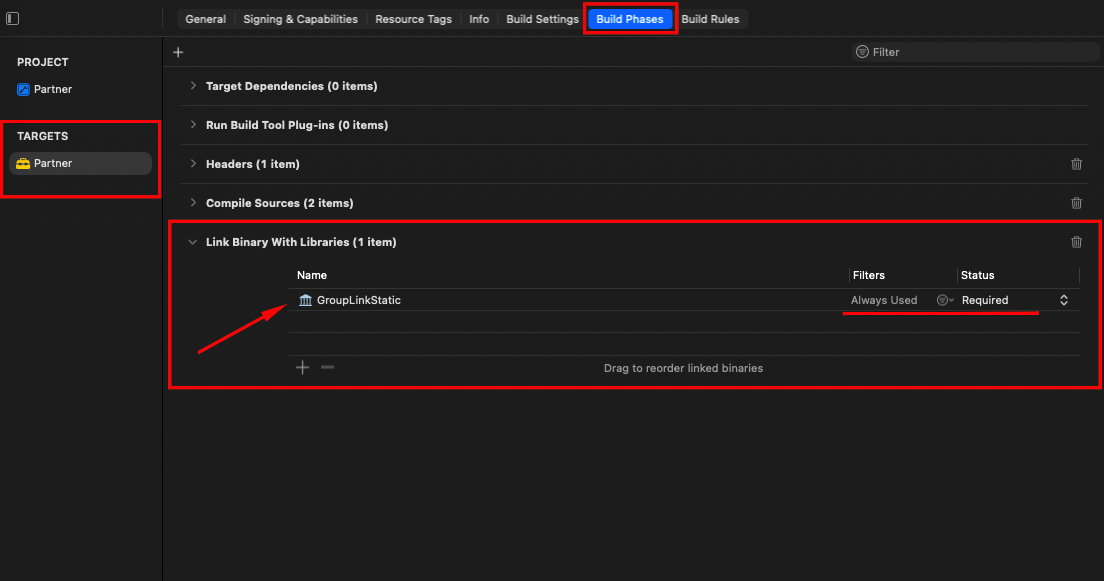
GroupLinkStatic in the framework TARGET → Build Phases → Link Binary With Libraries
[OPTIONAL] - If the build fails with No such module 'GroupLinkStatic'
This error happens when the GroupLinkStatic package was not added correctly to Link Binary With Libraries.
You need to check whether the Link Binary With Libraries phase exists in your framework Build Phases.
If the phase does not exist:
- Go to the framework TARGET → Build Phases → + → New Link Binary With Libraries Phase.
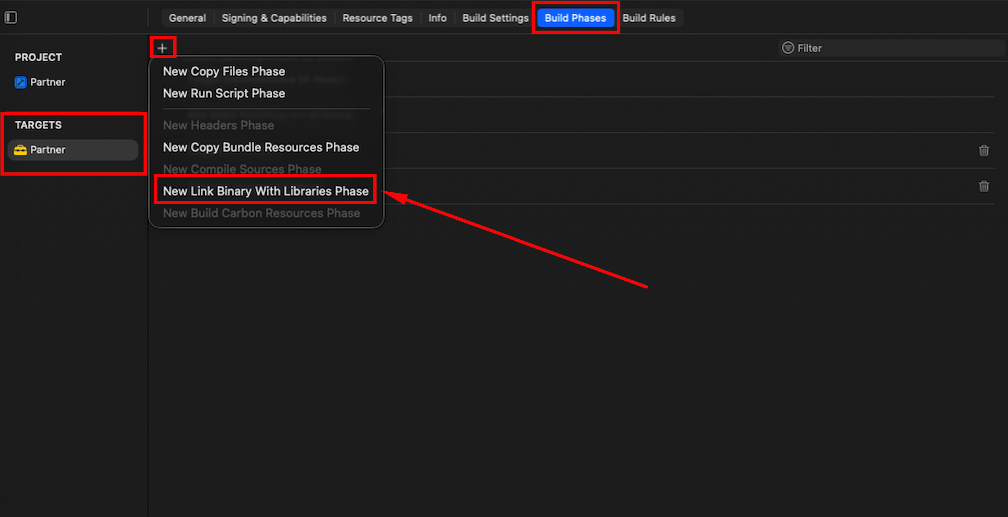
New Link Binary With Libraries phase
- Click + in the new Link Binary With Libraries phase.
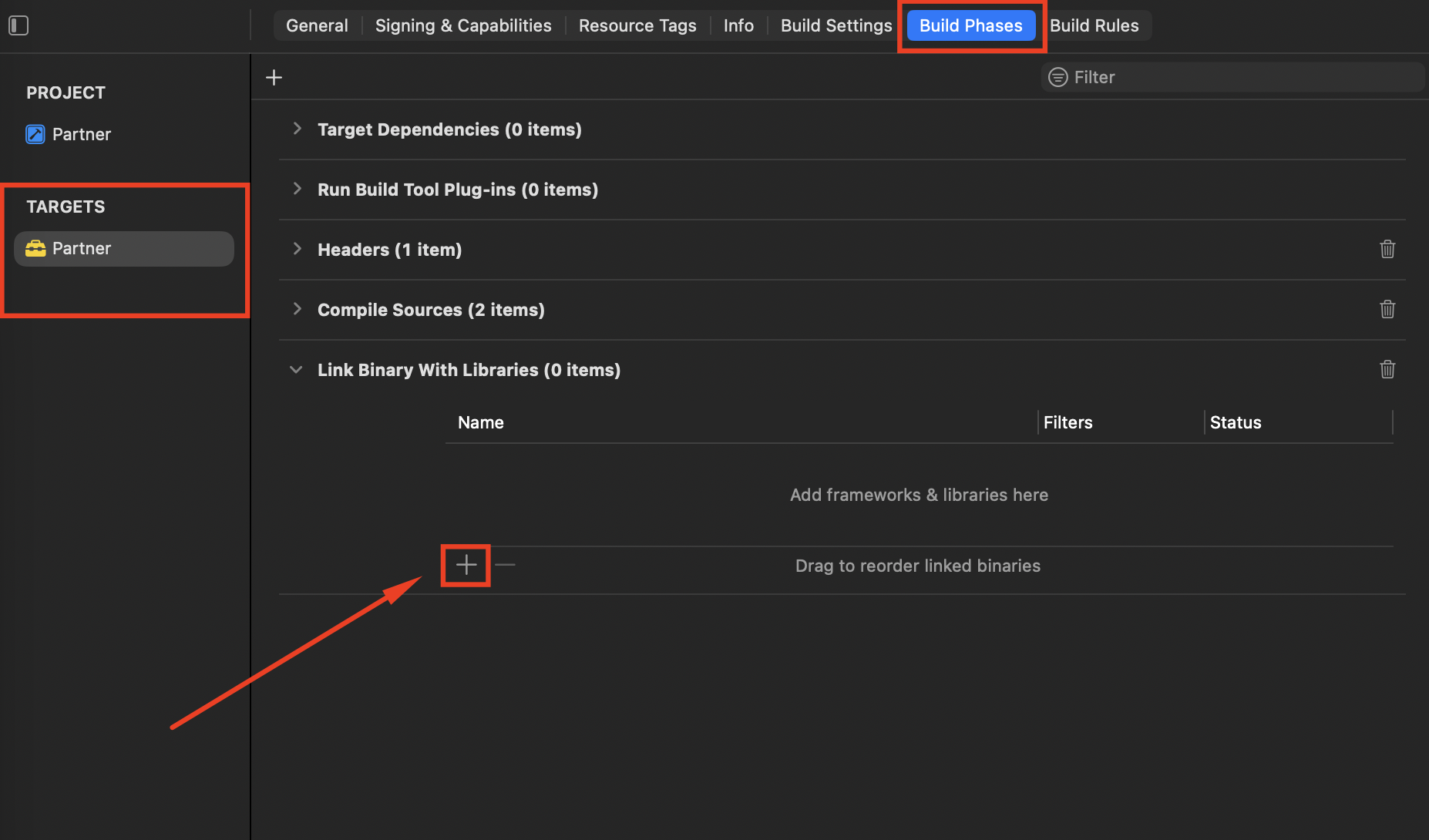
Clicking + in the new Link Binary With Libraries phase
- Add
GroupLinkStaticto the new Link Binary With Libraries phase.
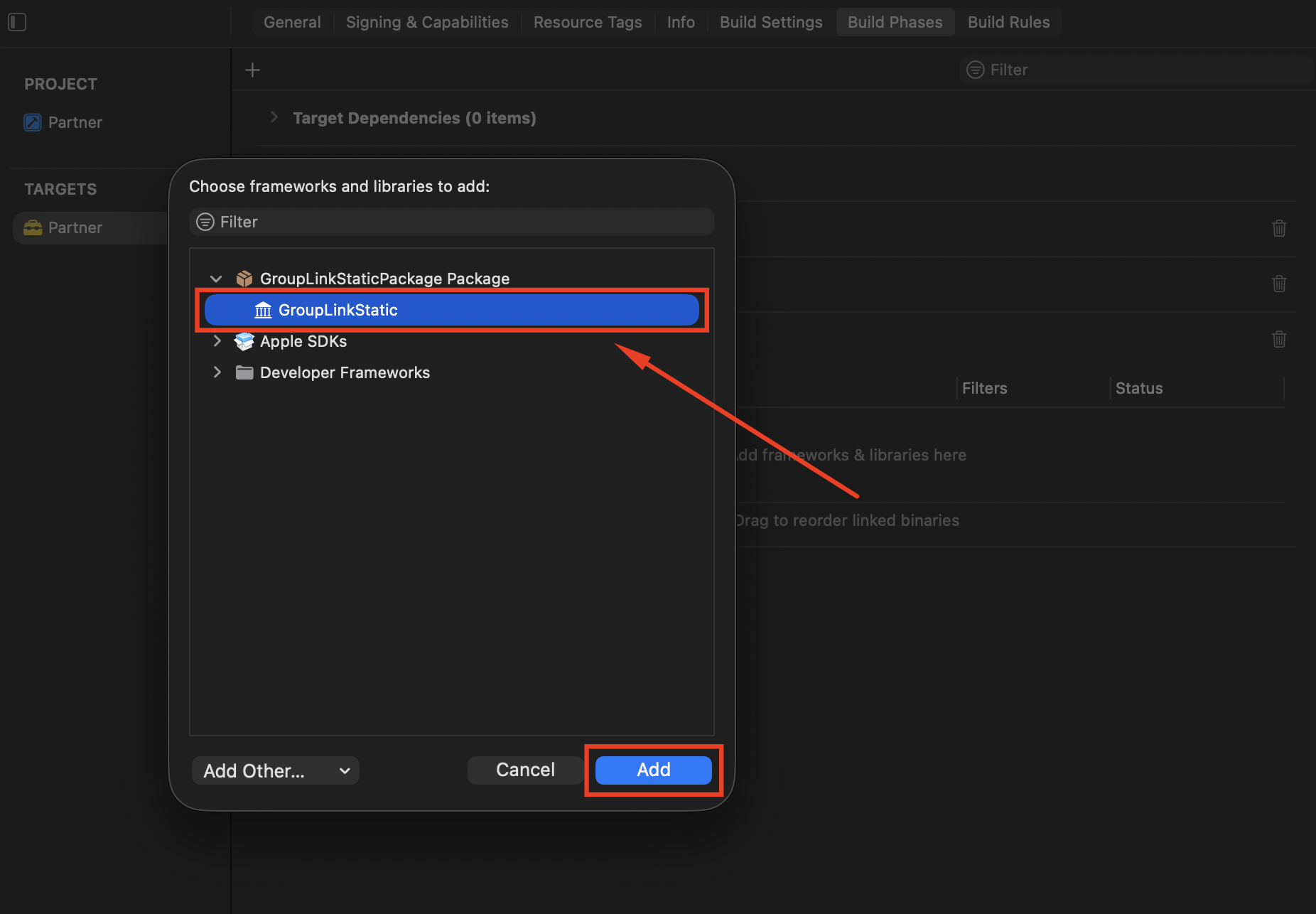
Adding GroupLinkStatic to the new Link Binary With Libraries phase
If the phase exists:
- Go to the framework TARGET → Build Phases → Link Binary With Libraries.
- Check that
GroupLinkStaticis listed.
GroupLinkStatic listed in Link Binary With Libraries
If the error persists, remove the package and add it again following the steps above.
- PROJECT → Package Dependencies → select
GroupLinkStaticPackage→ − → Remove. - Add the package again (step above), choosing your SDK framework TARGET in
Add to Target.
Step 3 - Start the Group Link SDK in your SDK
Put the Group Link SDK start inside your SDK init:
import Foundation
internal import GroupLinkStatic // Internal import of the Group Link SDK

@objc public final class YourSDKManager: NSObject {

    @MainActor
    @objc public static func start() {
        // ... your SDK current initialization ...

        if #available(iOS 15.0, *) {
            // Group Link SDK start
            GroupLinkSDK.start(appLabel: "<GROUPLINK_APP_LABEL>")

            // Required permissions
            GroupLinkSDK.startBluetooth()
            GroupLinkSDK.startLocation()

            // Remote ID setup (can be called at any time after the Group Link SDK start)
            GroupLinkSDK.setRemoteId("<REMOTE_ID>")
        }
    }
}
⚠️ Warning:
internal importmust be used in every file that imports the Group Link SDK. Do not use a plainimport, nor@_implementationOnly.